Monday, 25 March 2019

Apple Will Offer HBO, Showtime, and Starz Subscription Via Revamped TV App for $9.99/Month Each, Monetize Its Original Content


A detailed report from WSJ has spilled the beans on Apple’s upcoming video streaming services and news subscription service due to be unveiled at its ‘Show Time’ event on March 25.

The report mentions that Apple will be charging $9.99/month for Apple News Magazines. It will feature more than 200 magazines and newspapers at launch including content from The Wall Street Journal. However, WSJ’s general news content will be given a higher priority over business and finance news which caters to a smaller audience.

As for its video streaming service, Apple will be offering customers subscriptions to HBO, Showtime, and Starz each for $9.99/month and charge extra for its own content. It remains to be seen as to how this works and how Apple will charge for its original content.

Additionally, to reach a wider user base, Apple is mulling bringing its TV app to smart TVs and Roku streaming boxes. Apple has already expanded AirPlay 2 support to TVs from Samsung, LG, Sony, and Vizio earlier this year, though the feature is only available on some popular models released in the last year or two.

Apple’s CEO Tim Cook has been pretty serious about the company’s services efforts. He has regularly pushed the team to achieve goals which they initially thought were impossible. The Apple Music team had expected to cross 10 million subscribers within one year of its launch. Cook, however, told them to increase this goal to 20 million which Apple Music did end up crossing pretty easily.

The success of Apple Music gave Tim Cook and Eddy Cue the confidence needed to explore other avenues in the services sector where Apple could leave its mark. Videos were right at the top of that list and Apple even considered buying Disney or Netflix outright as per the report. Ultimately though, it decided to produce its own original content. At its ‘Show Time’ event, Apple will be showing some footage from its original content to show viewers what it has been up to over the last year or two.
Our Take

There’s a lot of buzz around Apple’s upcoming video streaming service and it is being cited as a Netflix ‘killer’ by many. However, a lot depends on what Apple charges for its streaming service and most importantly, how good its shows are. So far, we have seen Apple release a few original shows of its own including Planet of the Apps and Carpool Karaoke which bombed with the audience.

Apple will be live streaming ‘It’s Show Time’ event.

[Via WSJ]

Also Read:jihosoft Free iPhone Data Recovery

Sponsor ads:

Gihosoft Free iPhone Data Recovery:https://www.gihosoft.com/iphone-data-recovery-free.html

Gihosoft iPhone Data Recovery Free

Free iPhone Data Recovery Software for Windows/Mac

Recover up to 12+ types of files, including contacts, SMS, photos, WhatsApp, Viber, notes, etc.

Restore lost data from iOS devices directly or from iTunes and iCloud backup

Recover iPhone data lost due to iOS upgrade/jailbreak, accidental deletion, device lost or broken

Support all the latest iPhone, iPad and iPod Touch

Both Free and Pro version.

If you lost data after you updated to a new iPhone, you can always use Gihosoft iPhone Data Recovery to get the data back from the old iPhone or backup.You may also like: iphonerecovery.com

If you use android phones, please choose Gihosoft Android Data Recovery.

With Gihosoft Android Data Recovery, no longer afraid of data loss!

Must read:Youtube video downloader for pc

Gihosoft RePicvid Free Photo Recovery Software provides a free photo recovery software for windows to help users recover the deleted or lost photo for free.

Jihosoft Android Data Recovery: the best Android Data Recovery software for Windows and Mac to recover deleted contacts, messages, photos, videos, WhatsApp and etc from Android devices.Tips:How to transfer messages from iPhone to iPhone


Jihosoft File Recovery:Recover deleted, Lost, formatted, or corrupted files from PC, flash drive and memory card easily & safely

Sunday, 24 March 2019

Apple 'Netflix for Games' Subscription Service May Be Shown Monday


A previously reported "Netflix for Games" subscription service that Apple has been working on may be shown at the Apple Event scheduled for Monday, March 25th.


Bloomberg reports that beyond Apple's News and Video services which are expected to debut on Monday, Apple may be ready to unveil a similar gaming service.

Apple is also working on a premium games subscription for its App Store and discussing it with potential partners, according to people with knowledge of the plans. This service won’t take on new cloud-based streaming offerings like Google Stadia. Instead, it will focus on iPhones and iPads and bundle together paid games from different developers that consumers can access for a monthly fee.

The monthly service fee would be divided amongst the games in the service based on how much time is spent in each game. The service would likely focus on paid games rather than the popular free-to-play genre.


Bloomberg isn't certain the service will debut Monday but Apple has certainly cleared the way for a focus on new services for the event. Earlier this week, Apple quietly debuted new AirPods, iMacs, and iPads.

Also Read:jihosoft Free iPhone Data Recovery

Sponsor ads:

Gihosoft Free iPhone Data Recovery:https://www.gihosoft.com/iphone-data-recovery-free.html

Gihosoft iPhone Data Recovery Free

Free iPhone Data Recovery Software for Windows/Mac

Recover up to 12+ types of files, including contacts, SMS, photos, WhatsApp, Viber, notes, etc.

Restore lost data from iOS devices directly or from iTunes and iCloud backup

Recover iPhone data lost due to iOS upgrade/jailbreak, accidental deletion, device lost or broken

Support all the latest iPhone, iPad and iPod Touch

Both Free and Pro version.

If you lost data after you updated to a new iPhone, you can always use Gihosoft iPhone Data Recovery to get the data back from the old iPhone or backup.You may also like: iphonerecovery.com

If you use android phones, please choose Gihosoft Android Data Recovery.

With Gihosoft Android Data Recovery, no longer afraid of data loss!

Must read:Youtube video downloader for pc

Gihosoft RePicvid Free Photo Recovery Software provides a free photo recovery software for windows to help users recover the deleted or lost photo for free.

Jihosoft Android Data Recovery: the best Android Data Recovery software for Windows and Mac to recover deleted contacts, messages, photos, videos, WhatsApp and etc from Android devices.Tips:How to transfer messages from iPhone to iPhone


Jihosoft File Recovery:Recover deleted, Lost, formatted, or corrupted files from PC, flash drive and memory card easily & safely

Monday, 4 March 2019

How to Fix Jailbroken iPhone Stuck in Recovery Mode (iOS 12 Supported)


Although iPhone comes with a lot of amazing features and the iOS 12 gets some attractive new functions, jailbreaking undoubtedly seems interesting to a lot of users. There are people who find jailbreaking their device a good idea beyond Apple restrictions just to enjoy the liberty of operating the device as per their needs. However, some users notice their devices getting stuck in recovery mode after jailbreaking the device or the jailbroken iPhone just got stuck in recovery mode due to other reasons. If you're one of those, we shall help you fix the problem and get your jailbroken iPhone back to normal. Keep scrolling!


1. Force Restart Your iPhone

One of the useful workarounds includes force restarting your device when your jailbroken iPhone gets stuck in recovery mode. Check the steps mentioned below and hopefully it will help you get out of the problem.

For iPhone 6/6S and earlier device users:

Hold down the 'Power' and 'Home' buttons at the same time. After approximately 10 seconds, when you see the Apple logo, release both the buttons.


For iPhone 7/7 Plus users:

Similar to the above steps, you need to hold down two buttons simultaneously. But here, 'Volume Down' needs to be pressed along with the 'Power' button. Release when Apple logo comes.


For iPhone 8/8 Plus/X users:

Hit the 'Volume Up' button first. Now press the 'Volume Down' button and release it quickly. Subsequently, keep pressing the 'Power' button until the time you get to see the Apple logo on your device's screen.
Also Read:How to Download Songs from Spotify with 4 Best Spotify Music Downloaders 2019Also Read:How to Fix AC3 Audio Format Not Supported Error in MX Player


Sponsor ads:

Gihosoft Free iPhone Data Recovery:https://www.gihosoft.com/iphone-data-recovery-free.html

Gihosoft iPhone Data Recovery Free

Free iPhone Data Recovery Software for Windows/Mac

Recover up to 12+ types of files, including contacts, SMS, photos, WhatsApp, Viber, notes, etc.

Restore lost data from iOS devices directly or from iTunes and iCloud backup

Recover iPhone data lost due to iOS upgrade/jailbreak, accidental deletion, device lost or broken

Support all the latest iPhone, iPad and iPod Touch

Both Free and Pro version.

If you lost data after you updated to a new iPhone, you can always use Gihosoft iPhone Data Recovery to get the data back from the old iPhone or backup.You may also like: iphonerecovery.com

If you use android phones, please choose Gihosoft Android Data Recovery.

With Gihosoft Android Data Recovery, no longer afraid of data loss!

Must read:Youtube video downloader for pc

Gihosoft RePicvid Free Photo Recovery Software provides a free photo recovery software for windows to help users recover the deleted or lost photo for free.

Jihosoft Android Data Recovery: the best Android Data Recovery software for Windows and Mac to recover deleted contacts, messages, photos, videos, WhatsApp and etc from Android devices.Tips:How to transfer messages from iPhone to iPhone

jihosoft Free iPhone Data Recovery

Hоw Do You Rеѕеt iPhone 7/7 Plus wіth іTunеѕ


Hоw Do You Rеѕеt iPhone 7/7 Plus wіth іTunеѕ

If you prefer, you can also reset your iPhone using iTunes. This method is suitable for the situation that you may just give your iPhone to your family member or your friends.

Step 1: Connect your device to the computer.

Step 2: Open iTunes and Click the device tab from the top left corner.

Step 3: Click “Restore iPhone” in the Summary tab of iTunes.

Step 4: iTunes will ask if you’re ready to restore you iPhone, and click “Restore”.


Step 5: After it finished, iTunes will ask if you want to restore from backup, choose “Set up as a new iPhone” to start fresh with factory settings.


Nоtе: When the process done, iTunes will install the latest version of iOS software on you iPhone. Please note that the data just deleted still can be recovered, so if you need to erase them permanently you will need iMyFone Umate Pro for Windows or iMyFone Umate Pro for Mac to help you.
Part 3. How to Reset iPhone to New in Settings

If you aren’t too familiar with iTunes, you can also reset your iPhone directly from the settings option on it. This method is just to reset your iPhone to new simply not completely. Here’s how:

Step 1: Click on Settings > General > Reset.

Step 2: Click on Erase All Content and Settings.

Step 3: Enter your Passcode or Apple ID.

Step 4: Confirm your choice to erase data.


And it’s that simple. Just wait for your data to erase and follow the steps to set up your phone.

Note: Remember that this option resets your phone and erases your data, but nothing is permanently erased. This method is okay if you are going to continue using the phone yourself, but we wouldn’t recommend if you are going to sell or donate it.
Part 4. How to Reset iPhone to New Remotely

If you haven’t reset your iPhone before you giving or donating it way, or even worse that you have lost your iPhone, or if your iPhone has been stolen, you can use iCloud to delete your data remotely. Here’s how:

Step 1: Log into iCloud in www.iCloud.com/#find and click Find iPhone.


Step 2: Click on “All Devices” and find the device you would like to erase.


Step 3: Click Erase iPhone and wait for the process to finish.


Note to users: You can only use this option if your “Find My iPhone” option is turned on. For security purposes, we recommend always having this option turned on.


There are several different methods that you can use to restore your iPhone to new. The method you use will depend on the purpose of the restore. If you have lost your iPhone, or it has been stolen, you may have no choice but to use the iCloud method. If you just want to start fresh, and plan to continue using the phone yourself, the iTunes and iPhone settings methods will work just fine. But if you are planning on selling or donating your phone, and need to permanently remove all information and data, a software tool like iMyFone Umate Pro is highly recommended.Also Read:5 Best Music Player for PC to Free Download 2019
Also Read:How to Setup Dual Monitors in Windows 10 Computer 2019
Also Read:How to Permanently Delete Photos and Videos from Samsung Mobile Phone
Also Read:5 Best Free Movie Streaming Sites like Pubfilm to Watch Movies Online 2019

Sunday, 3 March 2019

Fix iPhone Stuck on Charging Screen or Battery Logo


While using your iPhone and observing the battery is going to dead, you got your charger and started charging it. After a while, you unplug your device from the charging cable and still see the iPhone stuck on battery logo and unable to use the device. If this is the case, check the troubleshooting tips we have listed below that can be performed to fix the problem. Read carefully while performing them and make your iPhone out of that red battery screen.


5 Tips to Fix iPhone Stuck on Charging Screen or Battery Logo

Also Read:Delete the Downloaded iOS Update on iPhone/iPad (iOS 12)

Sponsor ads:Fix Audio Issues on Windows 10 with 5 Methods that Work in 2019


1. Put Your iPhone into DFU Mode and Charge with a Original Charger and Cord


2. Set Your iPhone into Recovery Mode and Force Restart Your iPhone Next Day


3. Fix iPhone Stuck on Battery Logo without Data Loss


4. Restore iPhone using DFU Mode via iTunes (Data Loss)


5. Change the Battery at Apple Store
1. Put iPhone into DFU Mode and Charge with a Original Charger and Cord

When your iPhone stuck on battery screen, you can put it in the DFU mode and later try charging it. To do this, here is the guide.


Connect your device to your PC firstly and then hold down the 'Power' button along with 'Home' button if you use iPhone 6 and earlier iPhone model ('Volume Down' button if you have iPhone 7 or 7 Plus). After 10 seconds, release the 'Power' button ('Volume Down' button ) but keep holding the other one until you see the black screen indicating that your device is connected to iTunes. Your iPhone now is in DFU mode.


In order to put iPhone 8/8 Plus/X in DFU mode, you need to connect iPhone to PC and give a quick press to 'Volume Up' button followed by 'Volume Down' button. Now press the 'Power' key for 10 seconds and when the screen goes black, release it and then immediately hold down 'Volume Down' and 'Power' buttons together for nearly 5 seconds. At the end, release the 'Power' button and continue to hold the 'Volume Down' button for 5-7 seconds until iTunes show you that the device is detected and the screen turns black.


Once your device is in DFU mode, wait for a while and disconnect your device from the PC. Take your charger (make sure it is original one) and start charging your device. In such cases your iPhone uses way less energy mainly because the display stays off. Wait for about half an hour and then reboot the iPhone in order to have it properly booted.

Note: In this article, you will need to perform the steps to put your device into DFU mode or Recovery mode in several tips. If the steps are not clear for you, check the guide here.
2. Set iPhone into Recovery Mode and Force Restart Your iPhone Next Day

If still your iPhone is stuck on red battery screen, follow this method to get out of the problem.


Connect your iPhone to your Mac or PC and start holding down the 'Home' and 'Power' buttons simultaneously until you see the 'Connect to iTunes' screen. For iPhone 7/7 Plus, hold down 'Power' and 'Volume Down' keys together until iTunes logo appears.


The iPhone 8/8 Plus/X users are required to press 'Volume Up' button then 'Volume Down' button. Subsequently, long press 'Power' button until you see the same 'Connect to iTunes' screen.


These steps will take your device in recovery mode. Keep your device like this and the next day, force restart it to see if you can fix the issue.
3. Fix iPhone Stuck on Battery Logo without Data Loss (iOS 11.4 Supported)

If you're concern about your data being lost, the perfect option you can go with is iMyFone iOS System Recovery. This third-party tool is the most compatible one having the power to fix all major iOS issues including iPhone stuck on charging screen. The tool is fully secure and provides three professional modes that can help you fix your device stuck on home screen, Apple logo, boot loop and so on. It can fix these iOS issues without data loss. It is completely easy to use and requires no special technical skills to solve the issue. Let us see how you can make your device back to normal.Also Read:How to Make a Folder Password Protected
Also Read:5 Ways to Transfer Files from iPhone to Mac without iTunes
Also Read:How to Fix iPhone Volume Low in the Music App

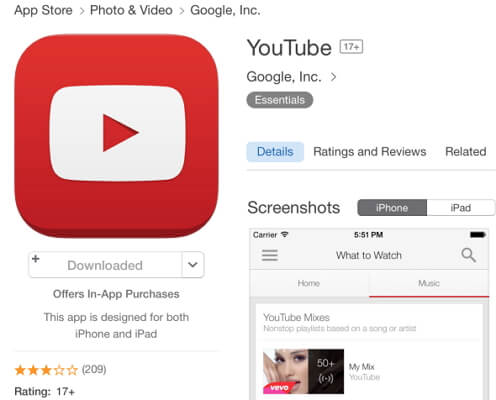
How to Fix YouTube App Black Screen on iPhone 2019

How to Fix YouTube App Black Screen on iPhone 2019

As we all know, YouTube is an exceptionally useful app that can fulfill your needs of entertainment. In fact, most of the iPhone users spend considerable amount of time with YouTube app every day. Like many other apps, however, even YouTube tends to malfunction occasionally due to one reason or other. That being said, YouTube black screen with audio is one of the most common errors experienced by most of the iPhone users.

Every day, thousands of iPhone users across the globe perform internet searches asking the question “how to fix YouTube black screen on iPhone” and that indicates how common this issue is. In fact, YouTube app black screen is a really annoying experience for any iPhone user. Many iPhone users tend to frustrate after seeing YouTube black screen with audio. Well, you don’t have to worry anymore about YouTube black screen issue anymore. Here this article explains how to fix it!


Part 1: How to Fix YouTube App Black Screen on iPhone


Part 2: Backup before Fixing YouTube App Black Screen iPhone


Part 3: Related Tips on YouTube Black Screen
Part 1: How to Fix YouTube App Black Screen on iPhone

From this point onwards, let’s take a look at the ways to fix iPhone YouTube black screen.


Force Quit YouTube & Restart Your iPhone/iPad


Reinstall YouTube with The Latest Version


Check Network Connection


Fix YouTube App Black Screen on iPhone/iPad via Third-Party Tool
1 Force Quit YouTube & Restart Your iPhone/iPad

In most of the cases, YouTube black screen can be fixed simply by force quitting YouTube and restarting the iOS device that has the issue. Here’s how to do it.
Force Quit YouTube & Restart iPhone 8 or older versions

Force Quit


Tap on the home button twice and the device will display the most recently used apps.


Swipe the screen to find YouTube app.


Close the app simply by swiping up the preview of the app.


Force Restart


Press the top (or side) button and hold it.


After slider appears, drag it to turn the device off.


Then, press and hold the same button (side or top) to restart the device followed by the Apple logo on the screen.


Force Quit YouTube & Restart iPhone X

Force Quit


You should swipe up and pause from the home screen.


Then, touch and hold firmly on the app you need to force quit.


If not, you can simply swipe up the apps to close them.


Force Restart


Press side button and volume up or down button simultaneously hand hold them.


Once the slider appears, drag it to turn off the device.


Then, press the same button (side or top) button and hold it to restart the device followed by the apple logo on the screen.


2Reinstall YouTube with The Latest Version

If the previous remedy didn’t work, you should then try to update YouTube app or uninstall the existing YouTube app and reinstall the latest version. Here’s how to do it.
To update YouTube

Go to the App Store and Tap the Updates. Then, you will be able to locate the YouTube option. If there is an update available for the app, it will be displayed.


To Uninstall and Reinstall YouTube

If there is no update available for YouTube and iPhone YouTube black screen persists, you should try reinstalling the app. Once the app is reinstalled, you will be able to sign in back using your old credentials.


3Check Network Connection

You can try checking the network connection if the YouTube black screen continues to appear. No matter whether you use cellular data or Wi-Fi data, the connection must be strong if you use YouTube. After all, YouTube works seamlessly on strong networks and tend to give some trouble on slower networks. So, you should be sure if your network connection is strong enough to run video streaming. To get it verified, you should:


Turn off both cellular and Wi-Fi data on the iPhone or iPad.


On your device, you should reset the network settings related Wi-Fi or cellular network.


After the resetting is done, you should connect the device on Wi-Fi or Cellular data network.


4Fix YouTube App Black Screen on iPhone/iPad via Third-Party Tool

For those who wonder how to fix YouTube black screen, here’s a very easy option to try. To do this, you will need the assistance of software tool called iMyFone iOS System Recovery. Sponsor ads:

Gihosoft Free iPhone Data Recovery:https://www.gihosoft.com/iphone-data-recovery-free.html

Gihosoft iPhone Data Recovery Free

Free iPhone Data Recovery Software for Windows/Mac

Recover up to 12+ types of files, including contacts, SMS, photos, WhatsApp, Viber, notes, etc.

Restore lost data from iOS devices directly or from iTunes and iCloud backup

Recover iPhone data lost due to iOS upgrade/jailbreak, accidental deletion, device lost or broken

Support all the latest iPhone, iPad and iPod Touch

Both Free and Pro version.

If you lost data after you updated to a new iPhone, you can always use Gihosoft iPhone Data Recovery to get the data back from the old iPhone or backup.You may also like: iphonerecovery.com

If you use android phones, please choose Gihosoft Android Data Recovery.

With Gihosoft Android Data Recovery, no longer afraid of data loss!

Must read:Youtube video downloader for pc

Gihosoft RePicvid Free Photo Recovery Software provides a free photo recovery software for windows to help users recover the deleted or lost photo for free.

Jihosoft Android Data Recovery: the best Android Data Recovery software for Windows and Mac to recover deleted contacts, messages, photos, videos, WhatsApp and etc from Android devices.Tips:How to transfer messages from iPhone to iPhone

jihosoft Free iPhone Data Recovery

Friday, 1 March 2019

How to Fix an iPhone Not Sending Pictures


Part 1: How to Fix an iPhone Not Sending Pictures?

If your iPhone is behaving and not letting you share your special pictorial memories with your loved one, here are four ways you can fix it. Let’s look at them one by one:
Method 1: Check iMessage

Also Read:How to Access and Unlock Android Phone with Broken Screen

Also Read:Top 7 Best Websites to Convert AVI to MP4 Free Online 2019

If you’re struggling to send pictures using iMessage because of a frozen “send button” or blue link color, then your problem is likely due to one of the below reasons:
-Network connectivity problem

Also Read:XD Card Recovery – Recover Deleted Photos from xD-Picture Card

Also Read:How to Convert SWF to MP4 on Mac or Windows

Also Read:7 Best iPhone Photo Editor Apps To Achieve Filter and Psychedelic Look

Also Read:5 Best Free Movie Streaming Sites like Pubfilm to Watch Movies Online 2019

iMessage works when the internet connection is available to send messages. If your internet connection is unavailable or weak, the messages will not go through.

Solution: Go to Settings>Wi-Fi to, or go to Settings>Cellular turn on your wireless network.


- Server problem

If the server is down, you will not be able to send pictures using iMessage. This is a popular reason for iPhone not sending pictures.

Solution: Use this link to check the iMessage status. If there’s an iMessage outage, the information will be displayed on the link. If the server is down, you can only wait for it to become functional.
Method 2: Check MMS

If your iPhone is not sending pictures when you’re using MMS, it’s highly likely that MMS is not switched on in the “Settings” section.

Follow the below steps to turn on MMS settings:


Go to “Settings”, then click on “Messages”.


Find MMS Messaging tab and check if it is turned on or off.


In case the MMS Messaging is switched off, turn it on using the slider.


If MMS Messaging is switched on, then the issue is most likely with your network career. Get in touch with them to resolve the iPhone not sending pictures.


Method 3: Reset your Network

Another prevalent reason is weak cellular network. This will most likely happen if you’re somewhere underground or in a low network signal area.

Try getting access to an area with a strong cellular network and see if you’re able to send the pictures. If your iPhone is still unable to send pictures, the last resort is “Network Reset.”

Follow the steps below to “Reset Network Settings:”


Open “Settings” and click on “General”.


Select the “Reset” option.


Next, click on “Reset Network Settings”.


Confirm if you wish to “Reset Network Settings”.


Try sending the pictures again once your network settings have been reset.Sponsor ads:


Gihosoft Free iPhone Data Recovery:https://www.gihosoft.com/iphone-data-recovery-free.html


Gihosoft iPhone Data Recovery Free


Free iPhone Data Recovery Software for Windows/Mac


Recover up to 12+ types of files, including contacts, SMS, photos, WhatsApp, Viber, notes, etc.


Restore lost data from iOS devices directly or from iTunes and iCloud backup


Recover iPhone data lost due to iOS upgrade/jailbreak, accidental deletion, device lost or broken


Support all the latest iPhone, iPad and iPod Touch


Both Free and Pro version.


If you lost data after you updated to a new iPhone, you can always use Gihosoft iPhone Data Recovery to get the data back from the old iPhone or backup.You may also like: iphonerecovery.com


If you use android phones, please choose Gihosoft Android Data Recovery.


With Gihosoft Android Data Recovery, no longer afraid of data loss!


Must read:Youtube video downloader for pc


Gihosoft RePicvid Free Photo Recovery Software provides a free photo recovery software for windows to help users recover the deleted or lost photo for free.


Jihosoft Android Data Recovery: the best Android Data Recovery software for Windows and Mac to recover deleted contacts, messages, photos, videos, WhatsApp and etc from Android devices.Tips:How to transfer messages from iPhone to iPhone


jihosoft Free iPhone Data Recovery


Method 4: Restart your iPhone

The best and the simplest way to check an iPhone not sending pictures is by restarting it. Once you restart your iPhone, try sending the pictures again.

If you are still unable to send pictures, try method 1, 2 or 3.

Kuo: All Three 2020 iPhones Will Feature 5G Connectivity

Reputed analyst Ming-Chi Kuo says in his latest note that all three iPhones which Apple plans to launch in 2020 will feature 5G connectivity...